
What Is Online Image Repair?
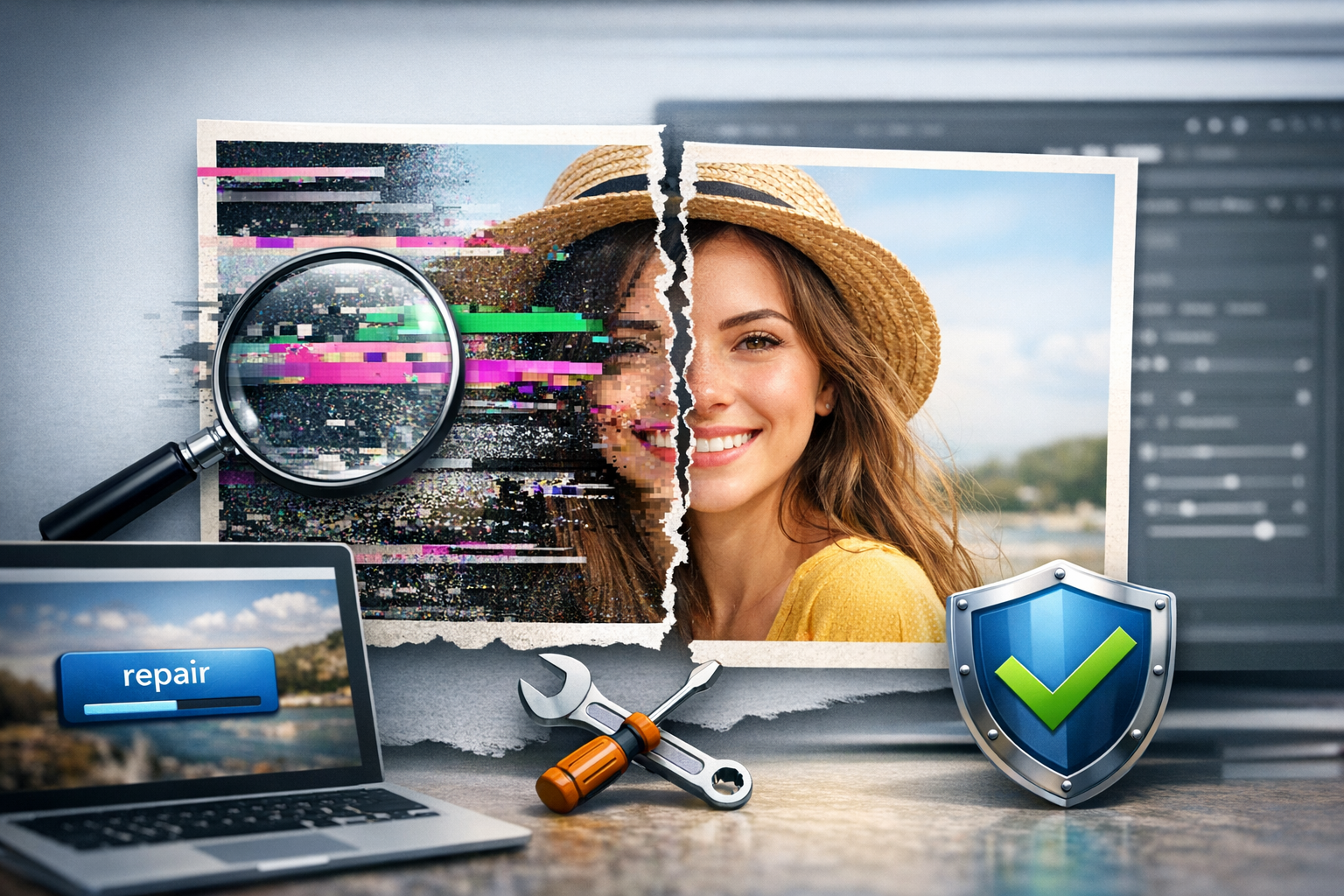
Online image repair is the process of fixing damaged, corrupted, or partially unreadable image files using a web-based tool—no software installation required. When an image won’t open, shows heavy artifacts, loads only half-way, or displays incorrect colors, the file is often affected by issues in its structure (headers, metadata, compression blocks) or by incomplete transfers and storage errors. Online repair services aim to rebuild or correct those broken parts so the image becomes viewable and usable again.
These tools can be a lifesaver when you need a quick recovery for a JPEG, PNG, HEIC, TIFF, or even a RAW file and you don’t have access to a desktop app—or you simply want a faster first attempt before moving on to advanced methods.
Common Signs an Image File Is Corrupted
Not every problem is “true corruption,” but the symptoms often look similar. If you notice any of the following, online image repair may help:
- The image won’t open in any viewer (errors like “unsupported format” or “cannot decode”).
- Only part of the image displays (for example, the top half is missing or gray).
- Strange blocks, lines, or heavy pixelation not present in the original photo.
- Wrong colors, banding, or unusual tint after transfer or editing.
- Thumbnails show but the full image fails, suggesting the preview is intact while the main data is damaged.
- File size looks suspicious (e.g., a high-res photo suddenly becomes a few kilobytes).
Why Images Get Damaged in the First Place
Image corruption typically happens when the file’s data is altered, truncated, or written incorrectly. Common causes include:
- Interrupted transfers (uploading, downloading, AirDrop, messaging apps, FTP transfers).
- Storage issues such as failing drives, bad sectors, unstable SD cards, or worn-out flash memory.
- Improper device removal (pulling an SD card or USB drive while a file is still being written).
- Power loss during saving or exporting from an editor.
- Software glitches in editing apps or camera firmware.
- Over-aggressive compression or conversion between formats.
Understanding the cause helps you choose the right repair approach and avoid repeated damage in the future.
How Online Image Repair Tools Work
While each service differs, most online image repair tools follow a similar process:
- File analysis: The tool scans headers, markers, chunks (for PNG), and compression structures to detect what’s missing or inconsistent.
- Structure reconstruction: It attempts to rebuild broken headers, restore necessary markers, or reassemble partial data.
- Data re-decoding: For JPEGs, tools may try to decode corrupted segments and salvage intact blocks to recover as much detail as possible.
- Metadata handling: Some repairs preserve EXIF data (camera settings, timestamps), while others strip it for compatibility.
- Output generation: The repaired image is produced—sometimes in the same format, other times converted to a safer format.
In practice, these tools are best at addressing moderate corruption (broken headers, minor truncation, small damaged regions). If a file is severely overwritten or mostly missing, a full recovery may not be possible—but partial recovery often is.
Step-by-Step: How to Repair an Image Online
If you’ve never used an online image repair service, here’s a practical workflow you can follow:
1) Make a Copy of the Damaged File
Before you do anything else, duplicate the file. Keep the original untouched. Some recovery methods work better on the “raw” corrupted copy, and you don’t want to accidentally overwrite your only version.
2) Identify the File Type (JPEG, PNG, HEIC, etc.)
Check the extension and—if possible—the file properties. Many tools are format-specific. JPEG repair tools may not help with PNG corruption, and vice versa. If the extension is wrong (for example, a JPEG saved as .png), correcting it can sometimes solve the problem immediately.
3) Choose a Reputable Online Image Repair Tool
Look for services that clearly state what formats they support, how they handle privacy, and whether files are deleted after processing. If the image is sensitive, prioritize tools with explicit deletion policies and secure transfer (HTTPS).
4) Upload the Corrupted Image
Upload the copied file (not your original). If the site offers options—such as “strict repair” vs. “maximum recovery”—start with the default setting. If it fails, try alternative modes.
5) Download and Inspect the Result
After repair, download the output and check:
- Does it open reliably in multiple viewers?
- Is the full image present?
- Are there visible blocks, shifted colors, or missing bands?
- Is the resolution correct?
If the repaired image looks acceptable, immediately save a backup in a stable format and store it in more than one location.
6) If Needed, Try a Second Pass (or Another Tool)
Not all repair algorithms handle corruption the same way. If the first result is partially fixed, a different service might recover additional details—or preserve metadata better.
What Formats Can Be Repaired Online?
Online repair is most commonly used for these formats:
- JPEG/JPG: Often recoverable because many JPEG files contain independently decodable blocks. Tools may salvage most of the photo even if some regions are damaged.
- PNG: Repair may involve restoring chunk structure and CRC validation. Some PNG damage is fixable; severe truncation can be difficult.
- HEIC/HEIF: Increasingly supported, but results depend heavily on the tool’s decoder and the type of corruption.
- TIFF: Can be repairable, though multi-page TIFFs and complex compression may be challenging.
- RAW formats (CR2, NEF, ARW, etc.): Online tools vary widely. Some can rebuild basic structure; others may not support RAW at all.
If you’re unsure, try a tool that lists broad format support and provides a clear failure message rather than producing a blank or overly compressed output.
Limits of Online Image Repair (What It Can’t Fix)
Online repair is convenient, but it isn’t magic. These scenarios often require deeper recovery methods:
- Overwritten data: If new data replaced the original blocks on a drive or SD card, repair tools can’t reconstruct what no longer exists.
- Extremely small files (e.g., a 5 MB photo that became 12 KB): This usually indicates heavy truncation.
- Encrypted or proprietary containers: Some app-exported images are wrapped in formats that standard decoders can’t interpret.
- Severe memory card failure: If the card is failing, focus first on imaging the card or using file recovery tools before repair.
If the online tool fails, your next steps may include trying desktop repair software, extracting previews from RAW files, or performing file recovery from the storage device.
Privacy and Security: Uploading Images Safely
Since online repair requires uploading your file, privacy is a real consideration—especially for personal photos, client work, or confidential documents. Before you upload anything, check for:
- HTTPS on the site (secure connection).
- Clear file retention policy (how long they store uploads and repairs).
- Automatic deletion after processing or after a short time window.
- Account requirements (not always bad, but avoid services that feel opaque about storage).
If the image is sensitive, consider offline alternatives—or crop out identifying content if a partial repair is all you need (for example, testing whether the tool can open the file at all).
Tips to Improve Your Chances of a Successful Repair
Small workflow changes can make a big difference in recovery success:
- Try opening the file in multiple apps first (some viewers are more tolerant of minor corruption).
- Rename the extension if you suspect it’s incorrect (e.g., .jpeg vs .jpg rarely matters, but .png vs .jpg does).
- Use a “reference image” when available: Some repair services can rebuild headers more accurately if you provide a healthy photo from the same device/camera and similar settings.
- Avoid repeated saves of a damaged file—each save can further degrade what remains.
- Work from the storage source when possible: If the photo came from an SD card, copy it again using a different reader/cable before attempting repairs.
- Preserve the repaired output in a stable format and store multiple backups (cloud + external drive).
When to Use Online Repair vs. Desktop Tools
Online image repair is ideal when:
- You need a quick fix without installing software.
- The image is moderately corrupted and you want a fast first attempt.
- You’re working on a device where installation is restricted (work laptop, public machine).
Desktop tools are often better when:
- You’re handling sensitive images and can’t upload them.
- You need batch processing for many files.
- You want more control over output, metadata, and recovery options.
- The corruption is severe and requires advanced methods.
Conclusion
Online image repair can be a fast, practical way to rescue corrupted photos—especially for common formats like JPEG and PNG. By making a copy of the file, choosing a reputable tool, and taking basic privacy precautions, you can often recover a usable version in minutes. If the damage is severe, combining online repair with storage-level recovery and offline tools gives you the best chance of bringing important images back to life.